
Can a customer legally edit Google reviews after you've resolved their complaint? Yes, but upcoming UK DMCCA regulations and strict AI moderation have rewritten the rules. Pushing someone to change a bad rating can now trigger automated penalties that explain exactly why Google is deleting your reviews in 2026. Don't panic over a harsh critique; smart businesses use targeted strategies to encourage voluntary revisions.
Navigating these strict compliance rules manually is risky, but ReviewSense automates the entire process safely.
The New Economics of "The Edit": Why Customer Opinion Shifts Matter
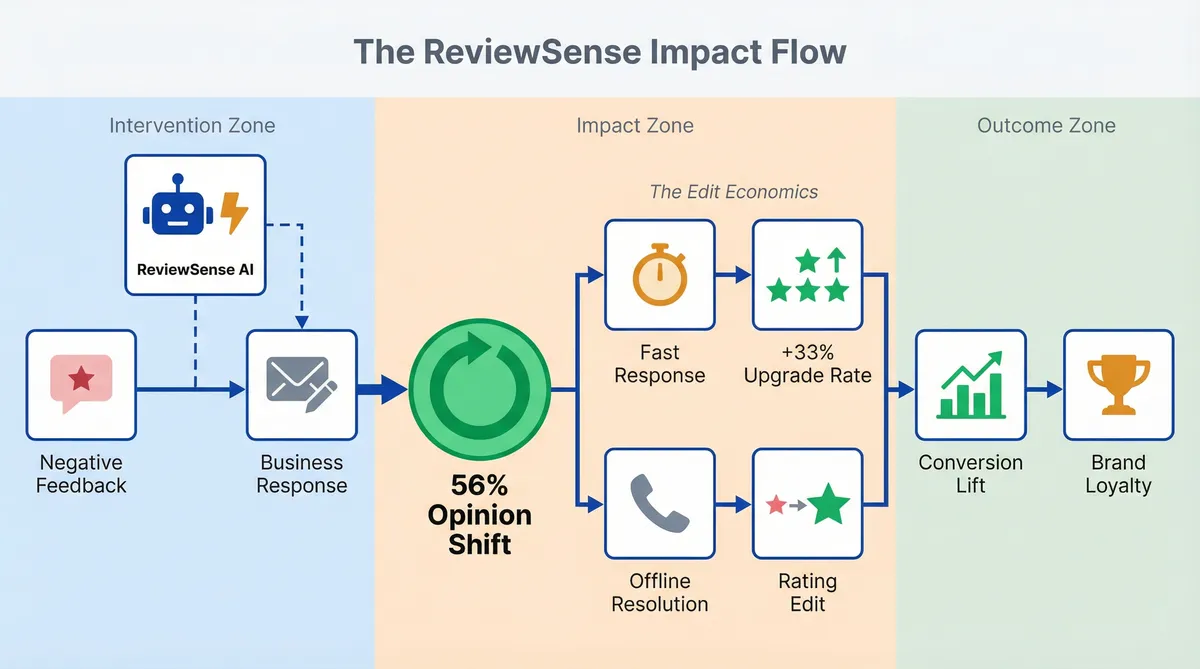
When a customer decides to edit Google reviews, it is not a random event. It happens because a business took time to listen and act. 56% of consumers report they have changed their opinion about a company specifically because of the provided response. A thoughtful reply turns a public complaint into an active dialogue. This shift impacts your bottom line.
Speed is your greatest asset here. Businesses that reply to negative feedback within 24 hours see a 33% increase in the likelihood of a rating upgrade. Hitting this tight window is difficult for busy teams. ReviewSense solves this with instant alerts and a Negative Review Response Generator. You get notified the moment bad feedback drops. The AI then drafts a professional reply.
Taking the conversation offline creates a powerful loop. Resolving complaints over the phone greatly improves the chance of a customer changing a one-star rating to five stars. Even a minor rating increase yields a massive lift in overall conversion rates. You turn angry buyers into vocal brand advocates. This proactive approach builds long-term loyalty.
Tracking these metrics helps justify the time spent managing your reputation. If you are Investigating Google Review Management Software: Capabilities, Limitations, and ROI, understanding these shifts is vital for your strategy. Here is how customer behaviour translates into measurable outcomes.
| Metric | Impact on Business |
|---|---|
| Opinion Shifts | 56% of consumers change their opinion based on a response. |
| Rating Upgrades | Replying within 24 hours boosts upgrade likelihood by 33%. |
| Offline Resolution | High chance of a 1-star to 5-star edit. |
| Conversion Lift | Minor rating increases drive significant sales growth. |
UK DMCCA Enforcement and Google's AI Moderation (2026 Updates)
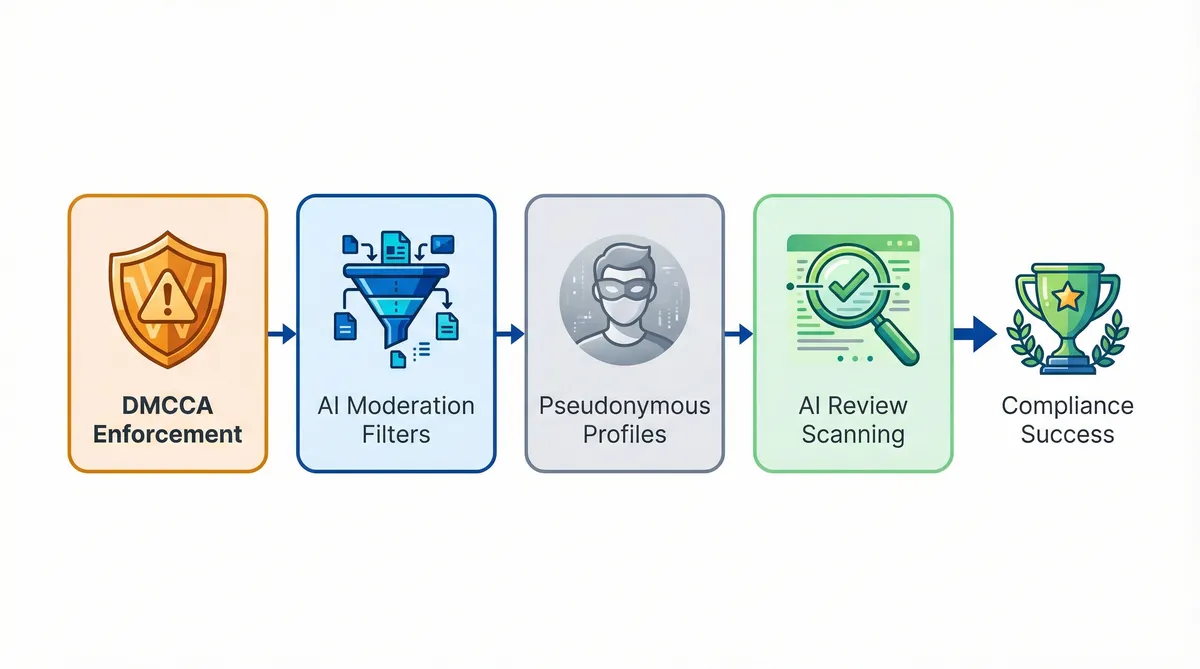
While resolving complaints over the phone drives rating upgrades, the regulatory environment governing these interactions has tightened. You must adapt to these new rules to protect your brand. Here are the four major updates affecting UK businesses this year.
- As of March 2026, the Digital Markets, Competition and Consumers Act is in active enforcement. UK businesses face severe penalties for review manipulation. Fines can reach 10% of global turnover. You must ensure any attempt to edit google reviews follows these legal guidelines. A single compliance failure can devastate your business.
- Google applies strict AI filters to owner responses. Replies can face delays ranging from 10 minutes to 30 days. Triggering spam filters puts your account at risk. If you face issues, consult the Google Business Profile Suspended? How to Appeal and Get Reinstated (2026 Guide).
- Many customers use nicknames and avatars. This shift makes identifying the actual buyer difficult. You must reply on time despite the profile name. Ignoring pseudonymous accounts damages your brand trust.
- Google's AI scans review text to answer user queries. It's replacing the standard Q&A section. The exact words in your customer feedback dictate your search visibility. You must monitor these conversations. Every piece of feedback shapes your search performance.
If a customer receives no response, the churn rate increases by 15%. ReviewSense provides the perfect compliance solution for these complex challenges. The auto-reply and queue workflows ensure your replies remain professional and on-brand. This stops your responses from getting stuck in Google moderation filters. You save valuable time while maintaining a strong reputation. Need more details on setup? Check the FAQ.
The Contrarian Truth: Hidden Technical Risks of Editing
While navigating AI moderation is tricky, convincing a customer to update their feedback introduces technical hazards. Mainstream advice suggests you should encourage users to edit google reviews after resolving an issue. This approach carries hidden risks.
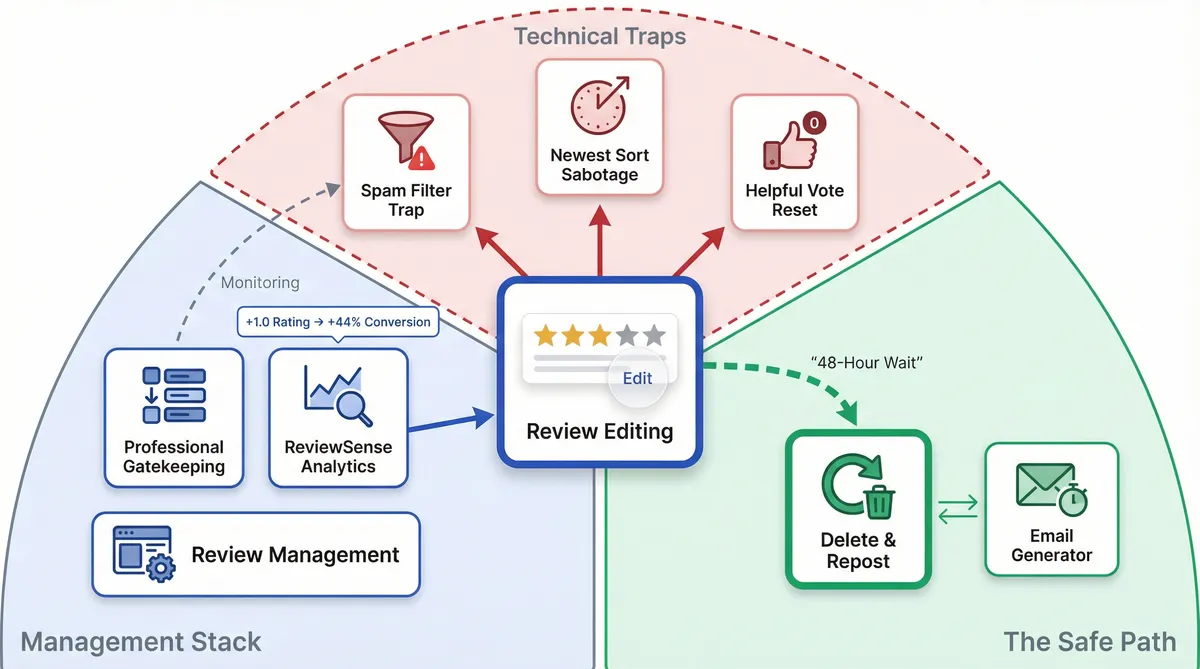
- The Spam Filter Trap: Changing text triggers Google's moderation algorithm. An older review faces a fresh evaluation. This results in a shadowban. The customer sees their updated rating, but it vanishes from public view.
- The Newest Sort Sabotage: Timestamps update when a user modifies their post. A three-year-old complaint jumps to the top of your profile. If they change the text but leave a one-star rating, you'll highlight old negativity.
- The Helpful Vote Reset: Older feedback accumulates thumbs-up votes. These votes boost positive comments. Editing strips all accumulated votes. This resets the review's visibility to zero.
Because of these technical traps, contrarian strategy suggests a different path. Asking a customer to delete their post and wait 48 hours to repost is safer. You can facilitate this using a Review Request Email Generator to send a timed follow-up. This bypasses the edit filters.
These interventions drive results. Businesses that engage with negative feedback see a 12% improvement in their average rating over a 12-month period. This rating lift stems from users replacing their initial scores. A +1.0 increase in average rating correlates with a 44% lift in conversion rates.
Monitoring these shifts requires proper tools. ReviewSense analytics track review velocity and sentiment trends. This helps teams spot when feedback disappears due to algorithmic filtering. If you are Choosing the Right Customer Review Management Software for Multi-Platform Businesses, tracking these technical traps is essential. Compliance with Google's 2026 policy updates is now a selection criterion in its own right, and our 2026 review management software comparison covers which collection methods stay inside the rules.
Real-World Lessons: How Not to Manage Your Digital Reputation
While technical traps complicate legitimate updates, attempting to suppress negative feedback creates legal disasters. Many retail brands learn this lesson the hard way. Fashion Nova tried to hide lower ratings from public view to protect sales. This deceptive tactic resulted in a large $4.2M FTC fine. Suppressing genuine customer voices always backfires.
Other companies have tried other disastrous methods to control their image. The Union Street Guest House threatened wedding guests with a $500 penalty for bad write-ups. The resulting public backlash destroyed their reputation. A Maryland business took a different route, impersonating buyers to alter scores. They paid a $50,000 settlement to resolve the fraud charges.
These manipulation tactics fail often. Between 5% and 15% of reviews are being flagged and deleted by AI for unnatural patterns. Instead of trying to edit google reviews through deception, smart brands adapt. Arby's provides a perfect contrast to these failures. They analysed complaint data to identify slow service times. Fixing the operational flaw improved their public perception.
You can replicate this operational success without manual data crunching. ReviewSense features sentiment analysis that extracts key topics. The platform flags recurring issues across your locations. This allows your team to focus on genuine feedback that impacts retention. You solve the core problem instead of hiding it.
Fixing root problems is the ultimate strategy for long-term growth. If you need a framework, consult the Online Review Management Guide. Addressing the root cause prevents new complaints from surfacing. For local strategies, read How to Manage Google Reviews Effectively: A Step-by-Step UK Business Guide. Reputation growth comes from better operations, not suppression.
Expert Strategies for Turning Negative Feedback into Positive Revisions
While fixing operational flaws prevents future complaints, you still need a strategy for existing unhappy customers. Transforming a harsh critique into a positive update requires tact. Experts agree that you should not pressure a buyer to edit google reviews. Instead, follow a structured workflow to protect your reputation.
Treat feedback as a listening tool. Local search expert Mike Blumenthal champions this specific mindset. Acknowledge the customer's frustration. Take the conversation offline to protect their privacy. Fix the underlying issue before mentioning their online rating.
Request an update without conditions. The Maryland State Bar Association advises asking for a revision after resolving the problem — guidance that applies just as much to UK law firms and agencies handling client feedback. Do not offer gifts for an updated score. SEO authority Joy Hawkins warns that indirect incentives violate platform guidelines. In the UK, the CMA can fine businesses up to 10% of their global turnover for review-related infringements.
Time your request. BrightLocal data shows 67% of consumers prioritise recent reviews. Prompt the customer while the positive resolution is fresh. Remind them to make changes in a single attempt. If a user edits a review too many times in a short period, it is 2.5x more likely to be flagged as suspicious by Google’s spam filters.
Navigating these conversations is delicate. Using a Negative Review Response Generator helps you craft professional replies. ReviewSense offers free templates and brand voice features to standardise this process. These tools help your team write perfect responses that naturally inspire customers to update their feedback. Mastering Customer Review Management: Building Trust and Improving Ratings turns your worst critics into loyal advocates.
Conclusion
Managing your digital reputation isn't about manipulating scores or suppressing negative feedback—deceptive tactics that often lead to severe platform penalties and regulatory fines. Instead, long-term growth requires treating critiques as valuable operational insights. By promptly addressing the root causes of customer frustration and taking conversations offline, you can respectfully resolve issues so buyers naturally choose to update their reviews.
Navigating strict platform policies and crafting the perfect, policy-compliant response takes time, but the right tools make it effortless. With built-in sentiment analysis and an AI-powered response generator, your team can resolve complaints efficiently while maintaining a consistent brand voice. Turn scattered reviews into actionable insights that improve customer experience and drive growth when you Start your 7-day free trial.